

Recent Updates/Trending Topics
Recent Updates/Trending Topics
- Many of you have discovered the reason why the Business Purpose that is entered in
Chrome River is so important: This is the information that is fed from Chrome River
into Banner as the Description. If the entered business purpose in CR doesn't have
info like the P-card holder's name or vendor, you won't have that info in Banner.
Tip #1: Check business purposes during your CR review. You can edit the business purpose without returning or having the expense owner recall.
If/when one slips through and you have rubbish for a description, Tip #2, this is how you figure out what/who it is for--there is still no way to change it in Banner, but at least you will know and you could change it in your secondary ledger, i.e. CatBooks.
There are a number of ways to track down the info in CR. The first time will take a few more steps, but you can save the report to make it quicker in the future:
- From Banner screen FGIDOCR, enter the PZ number, then search the journal for your
index/transaction.
- There will be a document reference number that is tied to the Chrome River report info (it is the Report ID in CR) - copy this number
- Open Chrome River, and from the three bar menu, select "Reports" then "Expense"
- Choose the report called "Submitted Reports" (If you already have a saved report in there, click "Create New")
- Under Report Filters, change the drop down selection next to Report ID to "Contains" and paste the document reference number you found in Banner in the search field
- If required, change the date range under Report Filters
- Click "Run Report"
- The report information will open and you can click on "View" to get the details from the pdf.
There are other reports that will be able to provide more info at a glance without having to open the pdf report--one I would recommend trying is "Expense Report Tracking" which is another option under the "Expense" category. Send an email to chromeriver-help@montana.edu if you require assistance! Happy to help!
- As you know, it is difficult to edit the Header information of a report if expenses are already added. The same applies for Pre-Approvals and requesting a Cash Advance, which makes it difficult if someone wishes to estimate a required Cash Advance based on the Per Diem for the trip.
Until the vendor can make a system-wide enhancement, the general workaround if something
on the header must be edited is:
- Delete all the anticipated expenses
- On the left screen, click the report name to bring the header up on the right screen
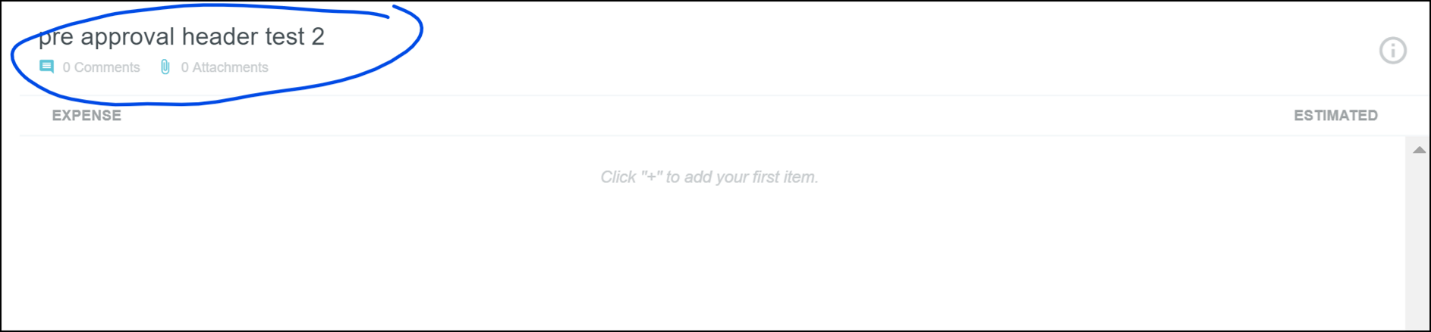
- Edit header information and click Save.
- Re-add anticipated expenses.
- When a Non-Travel expense report is returned, you cannot change an expense type to P-card Itemization to itemize into different expense types. For example, if the expense owner selected Supplies & Materials, but it needed to be split into multiple expense types, the report will have to be recalled or the transaction will have to be deleted from the report and added to a new report to be able to use the P-card Itemization tool.
- Did you know…Cash Advances appear in CR eWallets before they are processed in Banner for future travel dates. So if an advance was requested but not paid out yet, and the trip is cancelled, AP has to cancel the I-doc in Banner, then the advance can be removed from the eWallet. Users should take care about applying their cash advances to reports, and as reviewers we all need to pay special attention to cash advances. Anytime you have questions, please email chromeriver-help@montana.edu.
- The first stop approval queues, in many cases, contain approvers for multiple departments. If you see a report from someone in your approval queue that you do not recognize, just leave it there. No need to reassign or return. Just let it be. Someone else in your queue will be working to review it.
- HR and UIT have partnered to resolve supervisor data issues—Please continue to work with HR reps to update supervisor data in Banner. If supervisors are being skipped, let us know at chromeriver-help@montana.edu and we can reset the routing.
- New pcard requests: Please use 484067 as the default index number for all new pcard requests (Bozeman campus only)
- Multi-type Travel (i.e. International and Out of State)
- For Pre-Approval
- Process at highest level (i.e. For International and Out of State, choose International)
- For Expense Reports
- Multiple reports will need to be done for each type of travel
- Same Pre-approval can be applied to each report
- We will be working on a way to combine multiple types of travel onto one report
- Student Group Travel (not Athletics team travel)
- Cash advances and cash expenses for Student Group Travel are best processed outside of Chrome River
- P-card activity will need to be done in Chrome River as Non-Employee Travel Expense Reports
- Travel Insurance
- The MOM (Montana Operations Manual) allows for the purchase of airline insurance the solely protects against trip cancellation or re-booking fees.
- If travelers are purchasing airline trip insurance to cover cancellation due to the Corona Virus, it is their responsibility to ensure the insurance would cover this (most policies do not cover a known event)