

navMSU - Commonly Used V3 Reports
V3 Reporting allows faculty and staff to quickly access the information they need to support student success. To help you get started, instructions are included below for running common reports, such as appointments since a specific date, appointments without summaries, and class list.
For more details on V3 reporting, please refer to the V3 Reporting instructions. Report access varies based on your care unit and role permissions. If you do not have access to the information you need, please contact bz-navsupport@montana.edu to discuss your reporting needs.
Appointments Report
The Appointments Report displays appointment records in navMSU, including key details such as the student, staff or faculty member, date and time, meeting type, location, and appointment status.
Click on the link in each section below to open navMSU, adjust the criteria to fit your search, and click Run Report.
Appointments Scheduled Since a Specific Date
This report returns all appointments scheduled from the specified date for specific
services. Access this Report.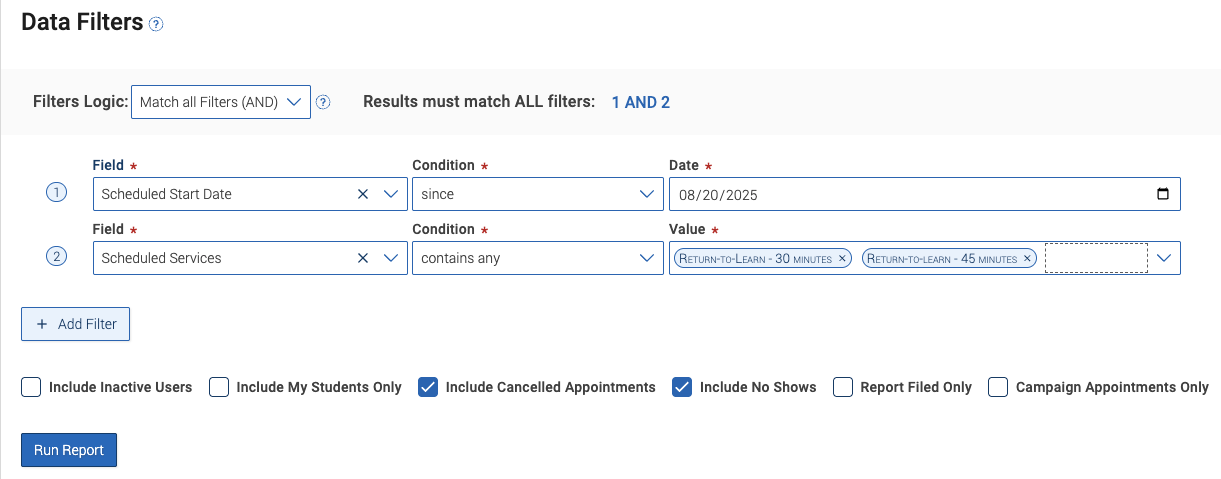
Tips for running this report:
- Scheduled Start Date: Set the condition to since and enter the relevant date. Change the condition to date range to find appointments within a specific time frame.
- Scheduled Services: Enter all relevant services.
- If looking to expand results by location or care unit, swap out the Scheduled Services field for Location or Care Unit.
- Add Staff Organizer as a field to narrow results to specific staff members.
- Consider checking the Include Cancelled Appointments and Include No Shows boxes for more comprehensive results of all scheduled appointments.
Appointments From a Specific Date Without an Appointment Summary
This report helps identify appointments that do not have a completed Appointment Summary.
Access this report.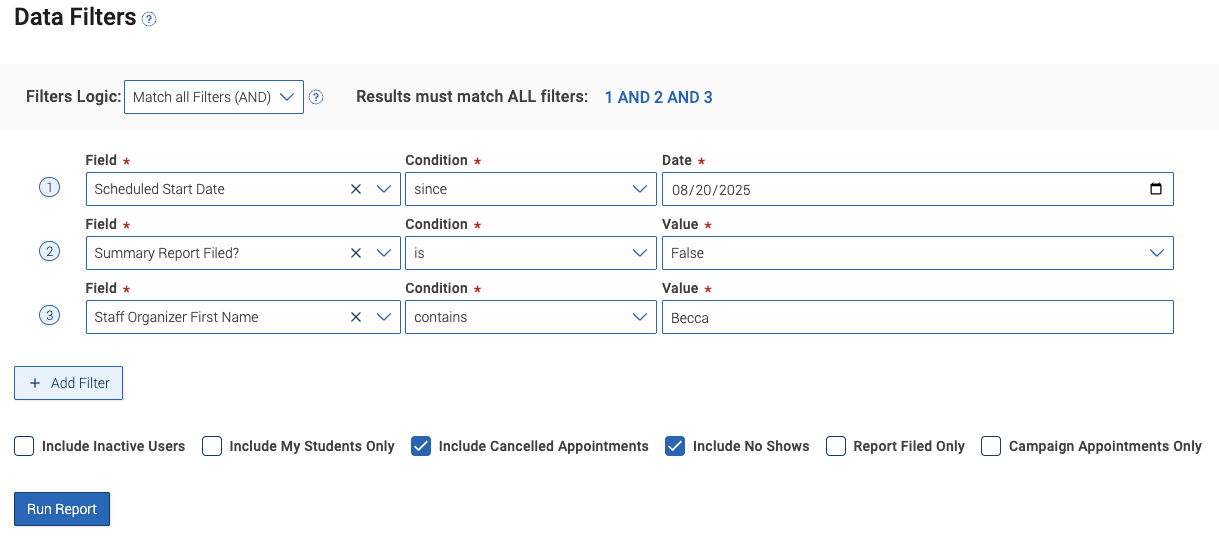
Tips for running this report:
- Scheduled Start Date: Set condition to since and enter the relevant date. Change the condition to date range to find appointments within a specific time frame.
- Summary Report Field?: Choose False as the value.
- If looking to expand results by user, consider adjusting the Staff Organizer condition field to any and adding more users into the values field.
- If looking to expand results by location or scheduled service, swap out the Staff Organizer field for Location or Scheduled Service.
- Consider unchecking the Include Cancelled Appointments and Include No Shows boxes for more accurate results of attended appointments.
Number of Cancelled / No Show Appointments
This report will provide a list of cancelled or no show appointments within a specific
timeframe for a specific staff member or specific services. Access this report.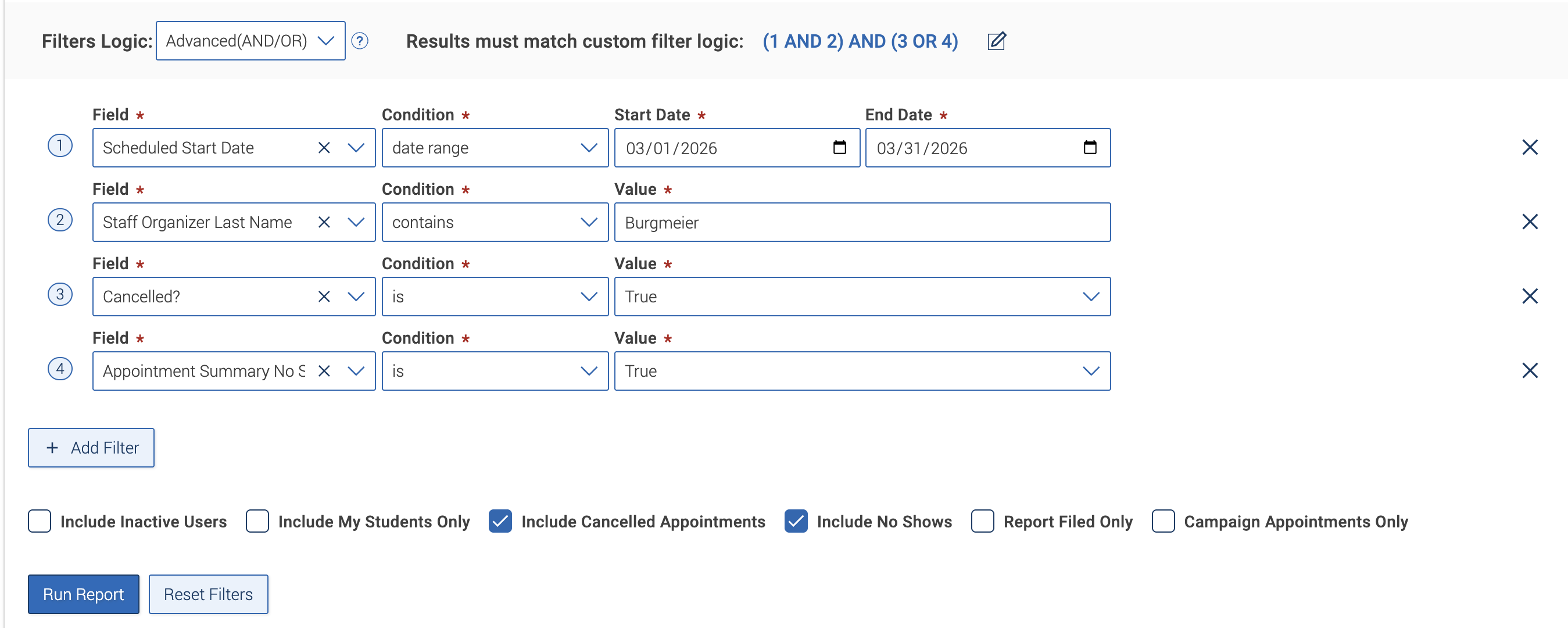
Tips for running this report:
- Please note that the Filters Logic – Advanced(AND/OR) must be selected. The logic must be (1 AND 2) AND (3 OR 4).
- Scheduled Start Date: Set the condition to date range and enter the relevant dates.
- To search by Service instead of Staff Organizer, remove the Staff Organizer Last Name field and include Scheduled Services. Select all services applicable.
- Both Cancelled? and Appointment Summary No Show? selected values must be True.
Appointment Feedback Responses Report
These reports show student responses to appointment feedback for services that include a post-appointment questionnaire. Access is limited to supervisor and program manager roles.
Click on the link in each section below to open navMSU, adjust the criteria to fit your search, and click Run Report.
Post-Appointment Questionnaire Responses
This report will provide post-appointment questionnaire responses for appointments
within a specific timeframe. Access this report.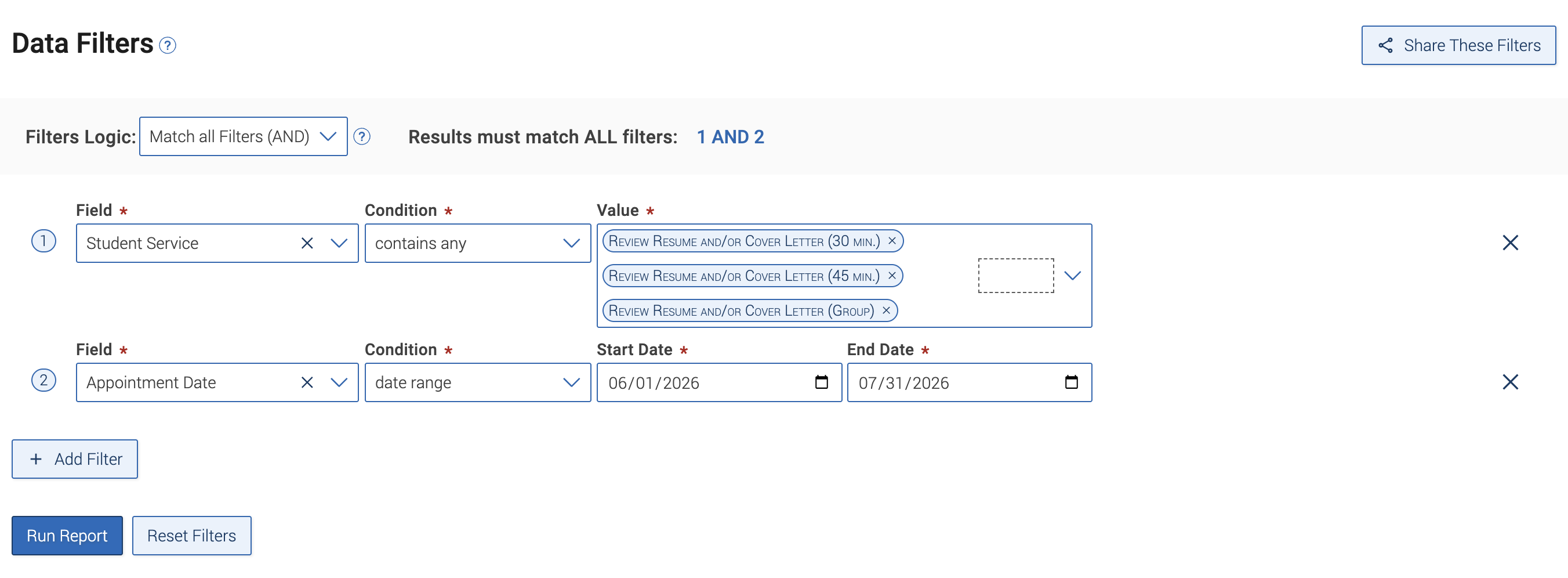
Tips for running this report:
- If looking to expand results by location or care unit, swap out the Student Service field for Location or Care Unit.
- Appointment Date: Set the condition to date range and enter the relevant dates.
Students Report
These reports provide a comprehensive view of student information. The Students Report includes the same data available in Advanced Search, plus additional filters and fields. Student data may include contact information, credits, GPA, majors and minors, course details, and affinity groups.
Click on the link in each section below to open navMSU, adjust the criteria to fit your search, and click Run Report.
Class Roll
This report shows all students who are in a particular section of a course. It can
be used to create an ad hoc appointment summary for classroom presentations or workshops,
or to message all students in a particular section. Access this report.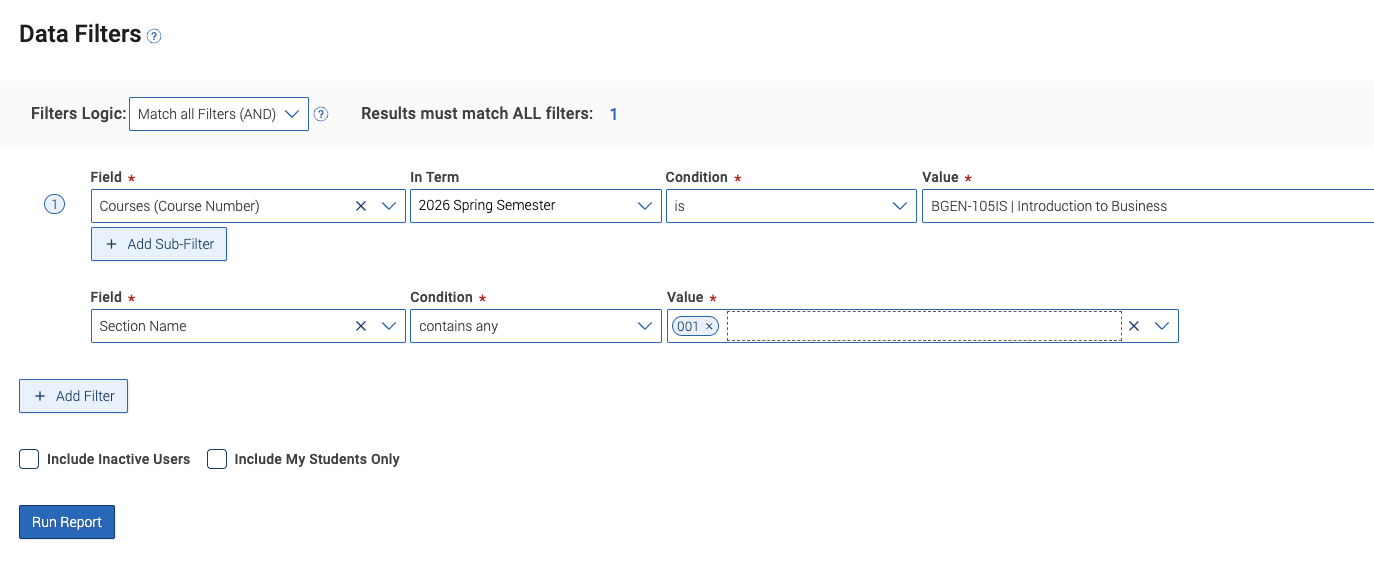
Tips for running this report:
- Courses (Course Number): Select the relevant class from the value field. Change the term as needed.
- Add Sub-Filter: Select this option if you need to filter by course section.
My Students Not Enrolled in Upcoming Term
This report identifies your students who are enrolled in the current term but have
not yet registered for the upcoming term. It excludes students who are designated
as Degree Candidates for the upcoming term, as well as those who are not in good academic
standing. It can be used to reach out to your students to encourage them to register
for classes. Access this report.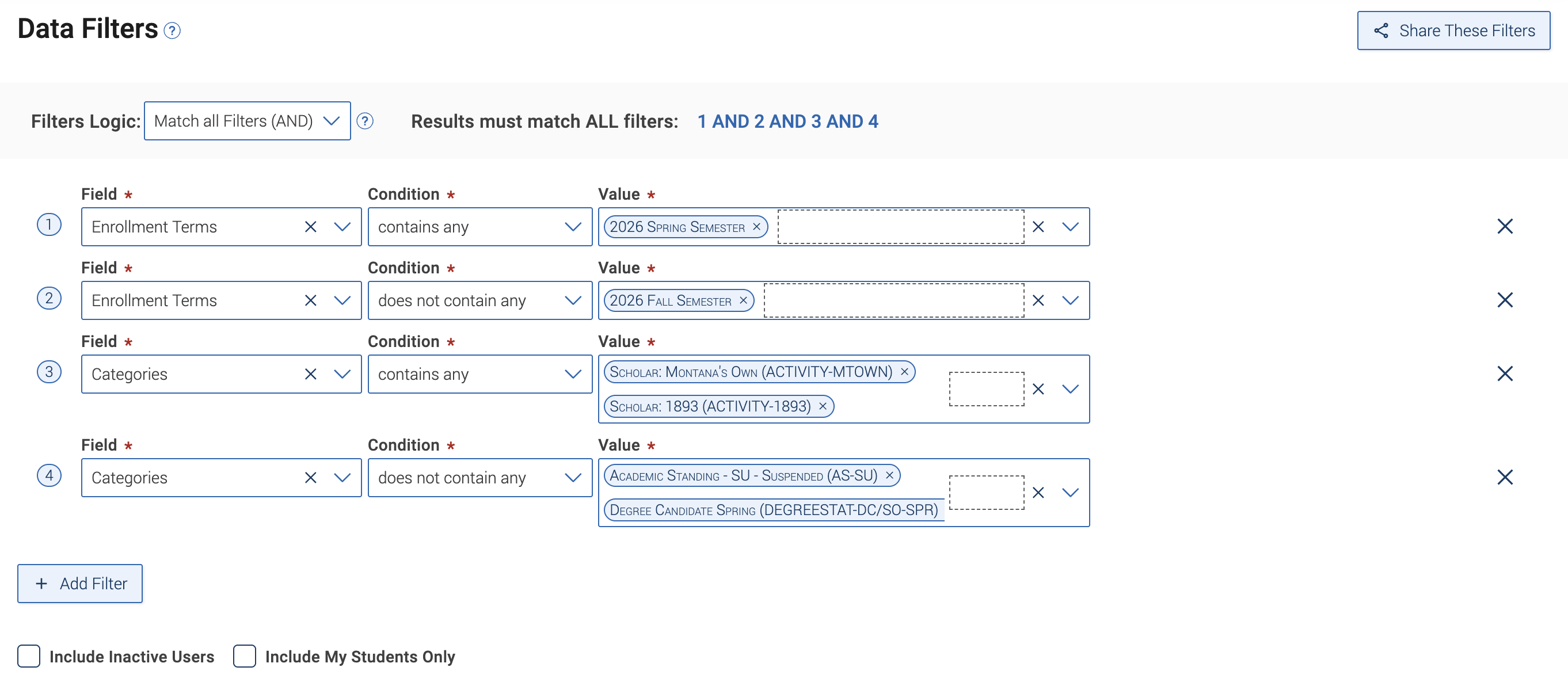
Tips for running this report:
- Enrollment Terms: Set one value as contains any with the current term, and the other value as does not contain any with the upcoming term.
- Academic Advisors with assigned students would check the Include My Students Only box rather than including the Categories contains any field.
Enrolled Students in a Minor
This report provides a list of students in a designated minor that are registered
in a current or upcoming term. Access this report.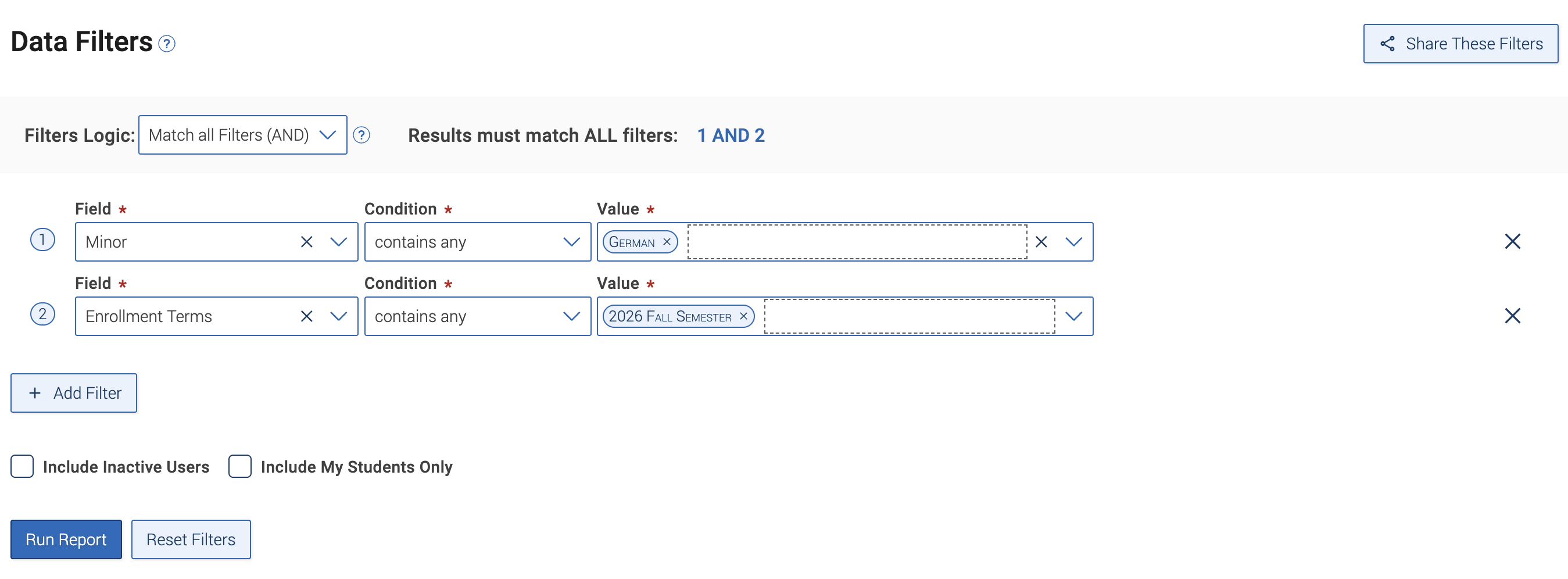
Tips for running this report:
- Minor: Select from the list of available minors.
- Enrollment Terms: Select the relevant term. This will exclude graduates and any students who are not registered in the select term.
Alerts Report
These reports provide a list of students that received Early Alerts. The report includes details on the alert reason, instructor, date, and alert comments.
Click on the link in each section below to open navMSU, adjust the criteria to fit your search, and click Run Report.
My Students with an Early Alert
This report returns your students who received an Early Alert within a specific timeframe.
Access this report.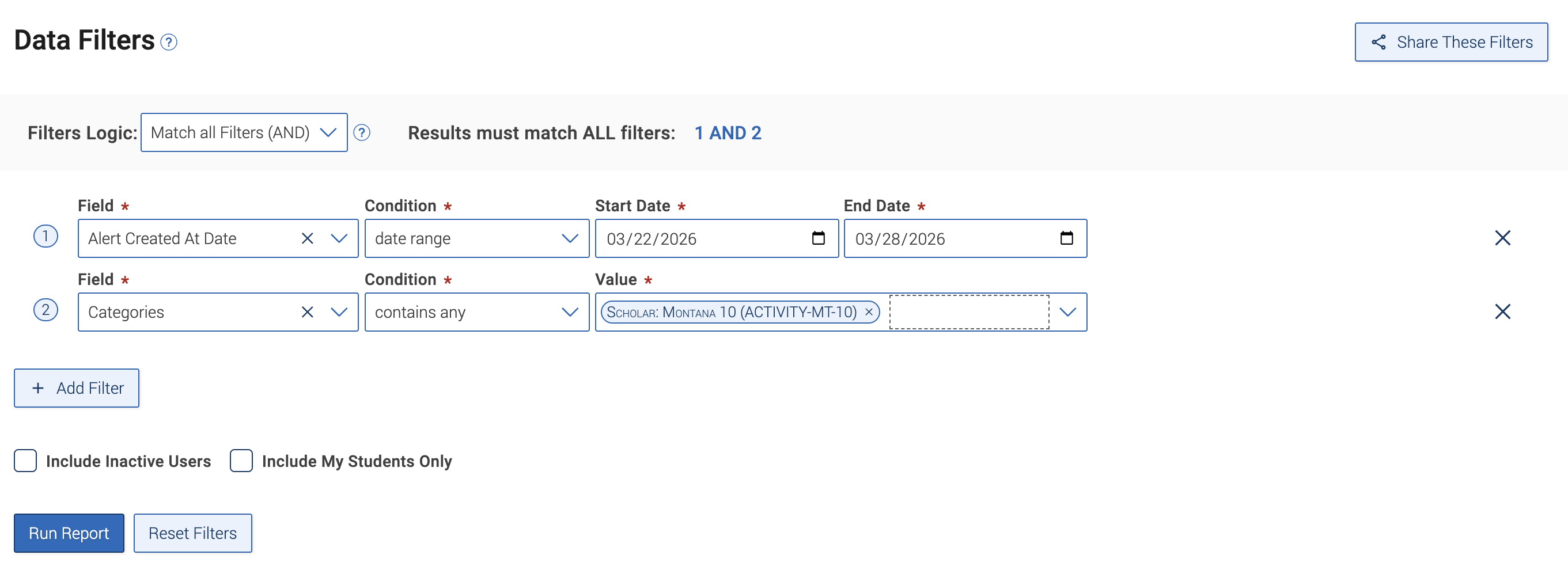
Tips for running this report:
- Alert Created At Date: Select a range of dates or change the condition to filter to sort by a different date field.
- Categories: Enter your affinity group name into the value field to find your student cohort.
- Academic Advisors with assigned students would check the Include My Students Only box rather than including the Categories contains any field.