
navMSU - Student Profile Overview
The student profile displays key details about a student. The Overview tab is the main profile tab and appears when you open a student profile. It provides a quick snapshot of the student’s performance and potential support needs.
Overview Tab
- The Student Summary offers staff and faculty the opportunity to gather a basic understanding of a student’s
academic performance to date. Each section can be expanded or collapsed by using the
dropdown arrow on the section title.
The data includes course performance (number of Ds and Fs, repeated courses, and withdrawn courses), credit performance (earned credits and earned to attempted ratio), and cumulative GPA.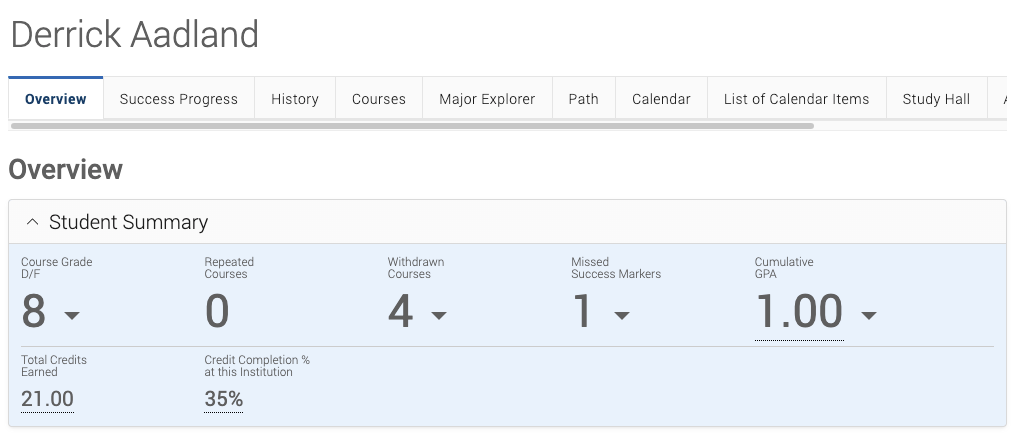
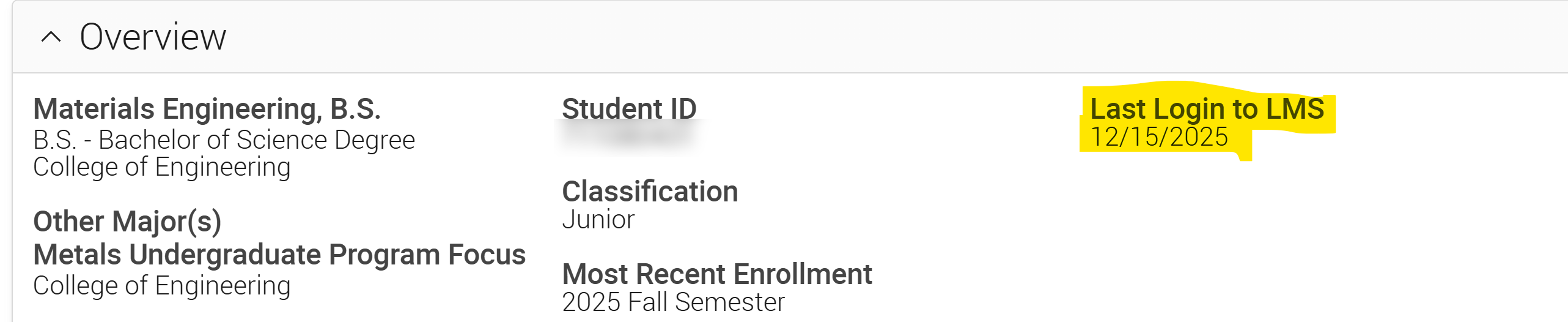
- Below the Student Summary is the Overview section, which contains basic information such as the student’s GID, classification,
most recent term of enrollment, major(s) and minor(s), and last login to LMS.
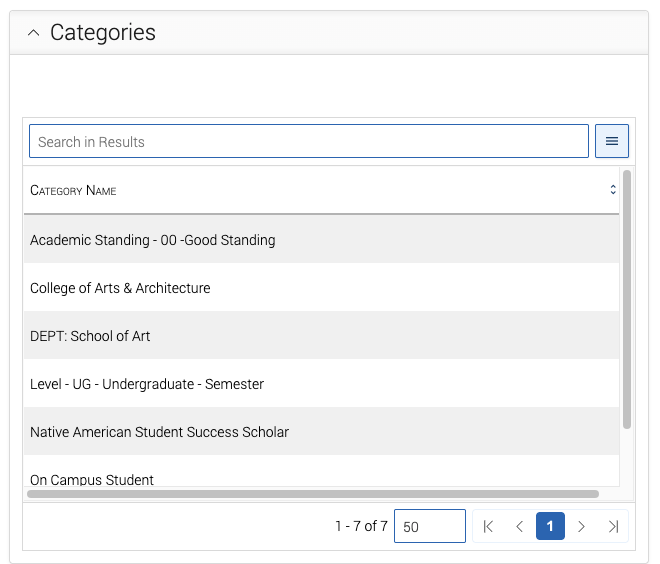
- The Categories section includes a list of all categories associated with the student. Categories
are used to understand the student’s attributes, affinity groups, and potential needs,
and often include both academic as well as non-academic information. For example,
students may have categories such as, “Scholar - Montana 10, On Campus Student, Academic
Standing – Good Standing.”
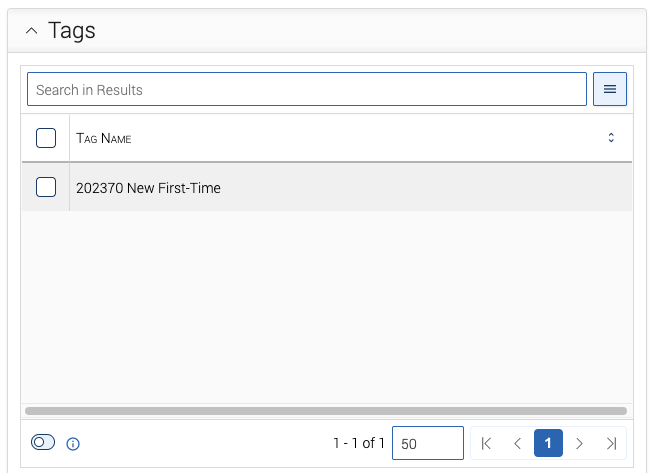
- The Tags section includes any information that has been manually tagged to the student’s profile
by the navMSU Technical Admin. Tags provide additional information about students
that may not be stored in Banner. For example, a tag may indicate their first term
at MSU or whether they’re a transfer student.
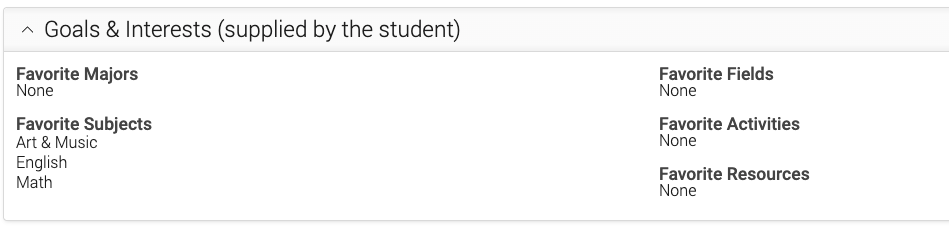
- The Goals & Interests section outlines information the student has provided through the mobile app, including
items that the student has marked as favorite. This section is not required for students
to complete.
- On the right side of the student profile, you’ll find options to take action. You may email or text the student, add a note, journey, or to-do for the student,
report on appointment, schedule an appointment, add the student to a student list,
or issue an alert.
Any Current Alerts or Active Appointment Campaigns will also display.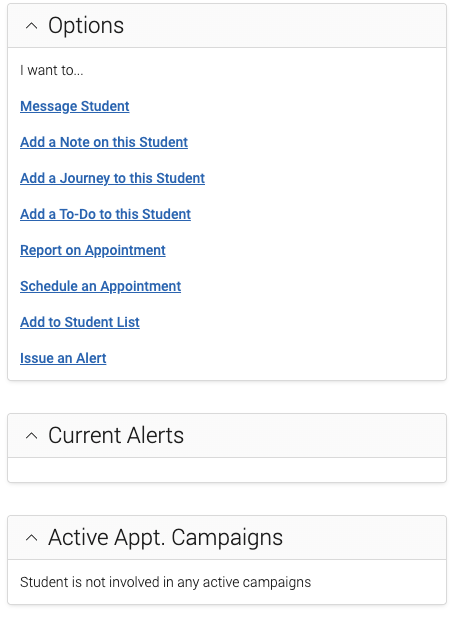
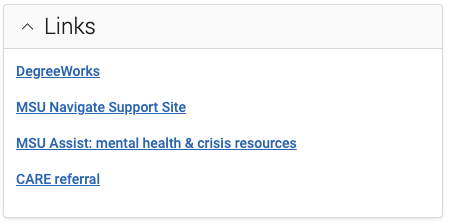
- Below the Active Appointment Campaigns, you will find Links section. The DegreeWorks link connects directly to the student’s DegreeWorks.
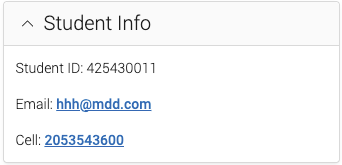
- The following section displays the Student Info, which connects to the student's preferred contact information in Banner. You can
message the student by clicking on their email address, or open a call via a program
on your computer if you click on the phone number (e.g, via FaceTime on a Macbook).
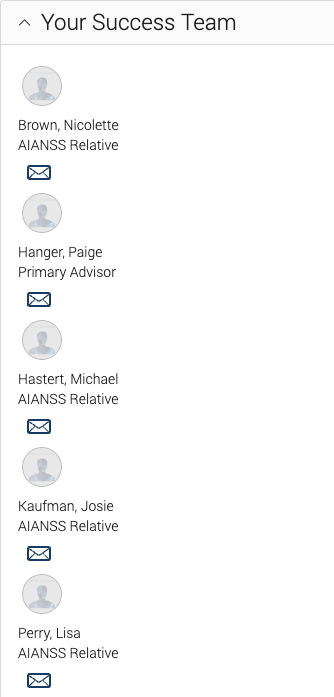
- The student’s Success Team also displays on the right side of the student profile. This includes a student’s
current instructors, academic advisors, and any other staff who have been assigned
to the student.