

Build or Review Your Canvas Course(s)

Whether you're building a new Canvas course or preparing an existing course for a new semester, use the resources below to organize your course, update content, set up grading, check accessibility, and prepare your course for students.
Before You Begin
If you're reusing content from a previous semester, copy the content into your new course shell before making updates. Follow the Canvas tutorial How to Copy a Canvas Course Using the Import Tool .
If multiple sections need to share one Canvas course, request the merge before copying content or setting up course tools. Learn more about Canvas course merges.
Organize Your Dashboard
-
- Log in to Canvas at montana.instructure.com .
- On your Dashboard, you'll see your course cards. If you have multiple courses with the same name, nickname them so they're easier to tell apart. Use the How to Nickname Your Course(s) tutorial to help differentiate between your courses.
- You can favorite courses so only the courses you want appear on your Dashboard. Learn how to favorite courses.
Set Up Your Course Homepage
Your course homepage is often the first thing students see when they enter your course. Use it to provide a clear starting point and help students understand where to begin.
If you used the MSU-branded homepage in a previous course, it will carry over when you import your course content. You can continue using it and update it for the new semester using the Update Your Homepage Tutorial.
You can also create your own homepage using a Canvas Page. Follow the Canvas tutorial How do I create a new page in a course?
Once you've selected the page you'd like to use, make sure it is published and set as your course Front Page. Follow the steps in How Do I Set a Front Page in a Course?
Organize Your Course with Modules
Modules provide students with a consistent path through your course. You can organize Modules by week, topic, unit, or another structure that fits your course. A clear Module structure can help students understand what to review, complete, and submit next.
To get started, review the tutorials on our Organize Your Course page.
Review Course Navigation
Course Navigation determines which areas of Canvas students can access from the course menu. Review your navigation and hide links students do not need to use directly. Keeping navigation simple can make it easier for students to find course content and know where to begin.
Follow the Canvas tutorial How do I manage Course Navigation links?
Create or Update Course Content
Canvas includes several tools for presenting course materials, communicating with students, creating learning activities, and assessing student work. Review existing content for the new semester and create or update items as needed.
Canvas Content Tutorials
Select the webpage icon for instructions on creating or managing each type of Canvas content.
Announcements
share course updates and important information with students.
Pages
present instructions, course materials, links, and other content.
Assignments
collect student work and provide grades and feedback.
Quizzes
create assessments using a variety of question types.
Discussions
create opportunities for class discussion and interaction.
Modules
organize and sequence course content and activities.
External Tools and Integrations
add supported tools such as Panopto and Gradescope to your course.
Check Course Accessibility
Build accessibility into your course as you create and update content. Use descriptive link text, headings, alternative text for meaningful images, captions for video, and accessible documents and course materials.
YuJa Panorama can help you identify and improve accessibility issues in files and other course content.
- Open a file or supported course item and select the Accessibility Report (Panorama icon).
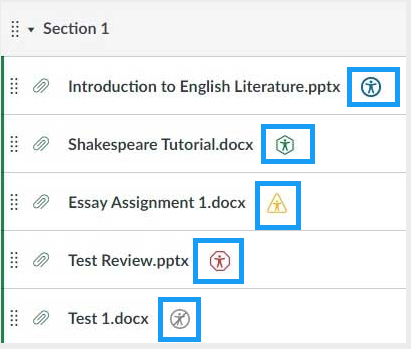
- Review the accessibility score and suggested fixes.
- Use the feedback to make improvements or provide a more accessible version.
For step-by-step guidance and available features, visit Getting Started with Panorama .
Set Up Your Gradebook
Before students begin submitting work, review how grades will be calculated in your course. Canvas Gradebook is built from graded course activities such as assignments, discussions, and quizzes. Review point values, assignment groups, grading policies, and any weighting you plan to use.
Important: Canvas calculates grades using total points earned divided by total points possible. This may produce different results from grading methods you previously used in D2L/Brightspace, particularly when assignments have different point values.
To get started, review the Gradebook Tutorial or the Gradebook Video . You can also review Understanding Canvas Grading for MSU-specific guidance.
Weight Assignment Groups
If your syllabus weights categories such as exams, quizzes, homework, or participation, you can organize graded activities into Assignment Groups and assign a percentage to each group. Within each group, Canvas calculates the student's score based on points earned out of points possible.
Review the Weight Your Gradebook Tutorial or Video .
Review Your Course Before You Publish
Before students begin working in your course, use the Canvas Course Checklist to complete a final review and make sure your course is ready for students.